 Custom Command
Image Builder: Positioning Elements
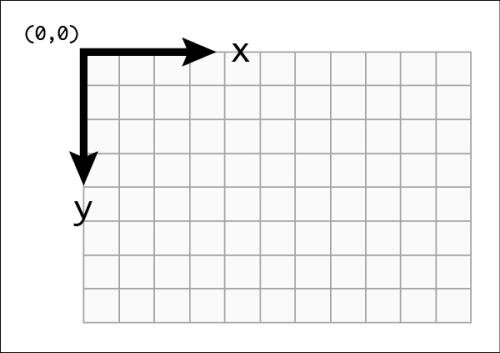
Positioning images and objects is a crucial step in building your images. Position is defined by two values, X and Y, which determine the object's location on the canvas.
Origin
The X and Y origin starts at the top-left corner of the canvas. This means:
[X=0, Y=0]is the top-left corner.[X=Width, Y=0]is the top-right corner.[X=0, Y=Height]is the bottom-left corner.[X=Width, Y=Height]is the bottom-right corner.
Example 1: Filling a Rectangle
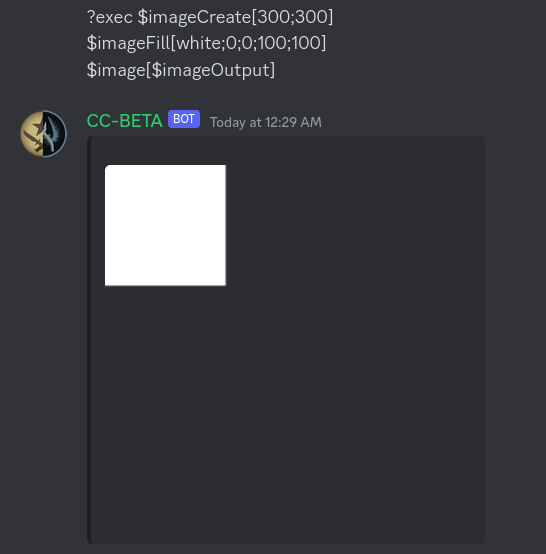
Let's use the $imageFill function as an example, which requires the position of the filled rectangle. We'll start by positioning a 100x100 rectangle at [X=0, Y=0]:
Centering the Rectangle (Attempt 1)
To center the filled rectangle, we might try placing it at X equal to half the canvas width, and Y equal to half the canvas height:
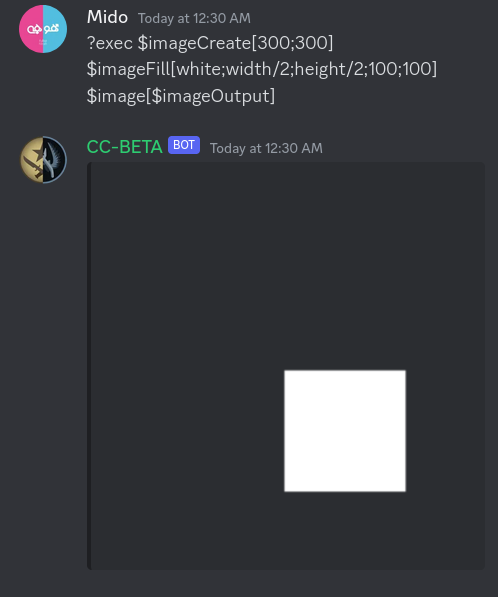
Problem: That doesn't look centered! Why?
Answer: You're right! By default, X and Y represent the position of the top-left corner of the object. Therefore, placing the corner at the center doesn't center the entire rectangle.
To fix this, we need to offset the position by half the rectangle's width and height.
Centering the Rectangle (Corrected)
Here's the corrected version:
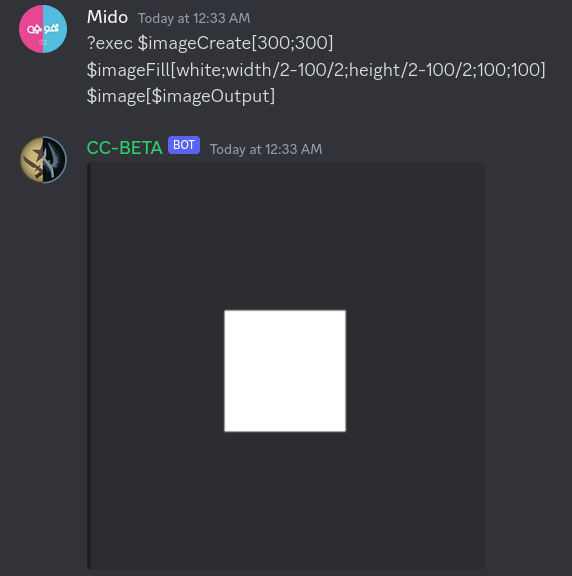
Yay! Now it's centered.
Position Base: Changing the Origin Point
By default, X and Y represent the top-left corner of the object. But what if we want to use a different point as the reference? For example, in the previous example, we had to perform extra calculations to center the box because we were working with the top-left corner.
$imagePositionBase
The $imagePositionBase function allows us to change the origin point used for positioning.
Its usage is:
$imagePositionBase[Base]Where
Basecan be one of the following:top,topleft,topright,center,centerleft,centerright,bottom,bottomleft,bottomright.
Example 2: Rewriting Example 1 with $imagePositionBase
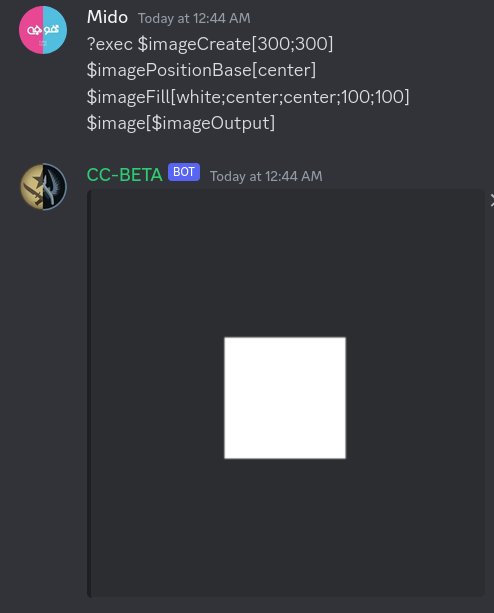
Let's rewrite Example 1, but this time we'll make X and Y represent the center of the box by specifying Base as center:
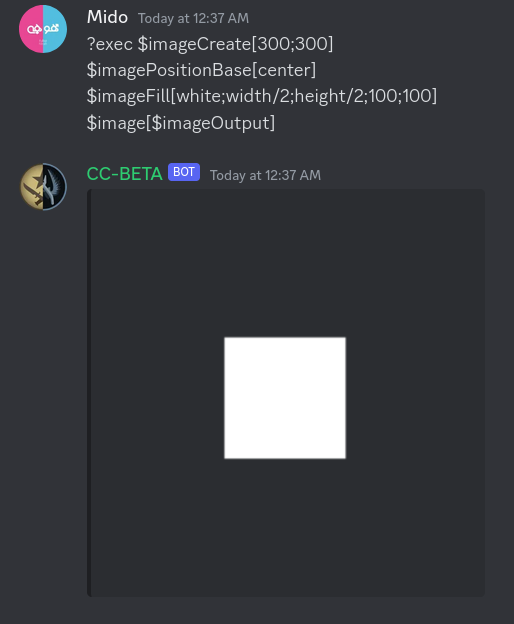
Did you notice width/2 and height/2? Introducing Placeholders
You might be wondering if there are more user-friendly names, like width and height, that can be used in position calculations. The answer is YES! We call them Placeholders.
Position Placeholders
Placeholders simplify positioning by providing convenient ways to refer to canvas dimensions and center points.
| Placeholder | Description |
|---|---|
width | The width of the canvas. |
height | The height of the canvas. |
centerx | The horizontal center of the canvas (equivalent to width/2). |
centery | The vertical center of the canvas (equivalent to height/2). |
center | If used in the X position, it's equivalent to centerx; if used in the Y position, it's centery. |
w | Alias for width. |
h | Alias for height. |
Example 3: Even Simpler Centering
Now we can use center instead of width/2 and height/2, making our code even cleaner: